It's quick and easy, as the whole process only takes a few minutes.
- Open Bilnex web application, enter your email address or sign up with a Google account. We recommend using an email associated with your business.
- We will then send you a confirmation code that you can use to verify your email address.
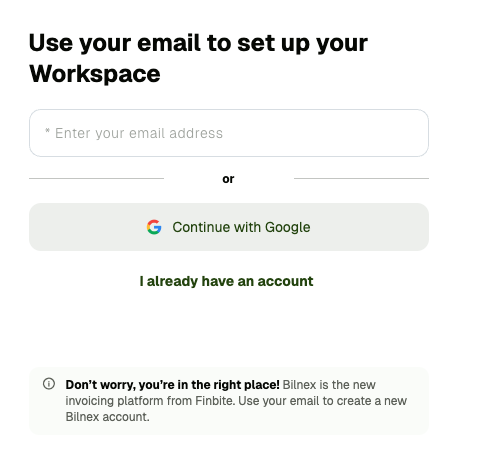
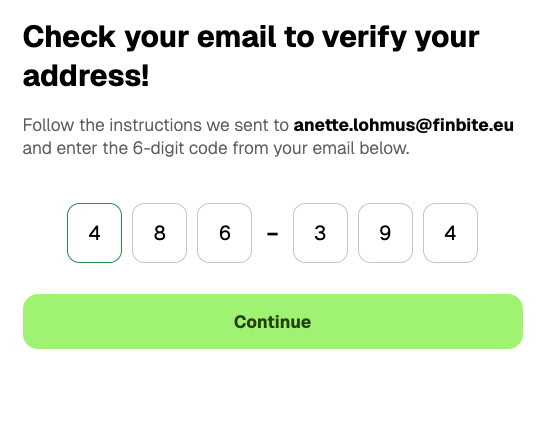
- Once the address is confirmed, add company details and choose a password.
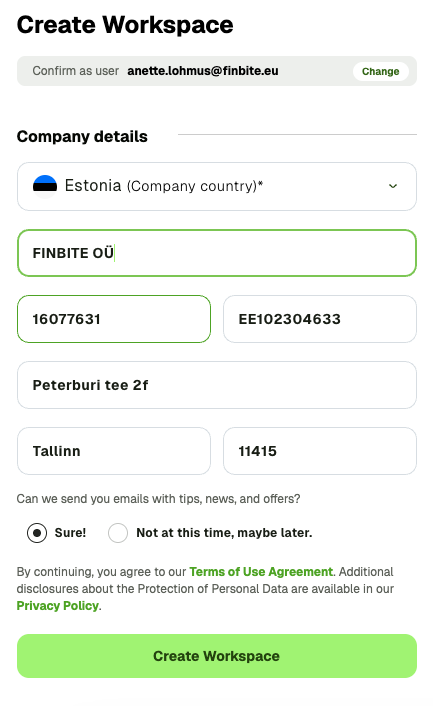
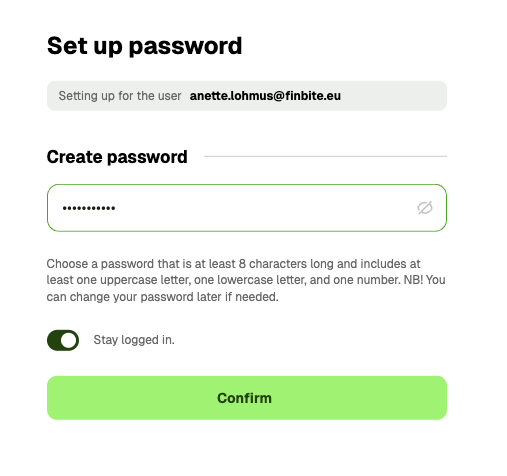
- Add your bank account details and you're ready to send your first invoice!
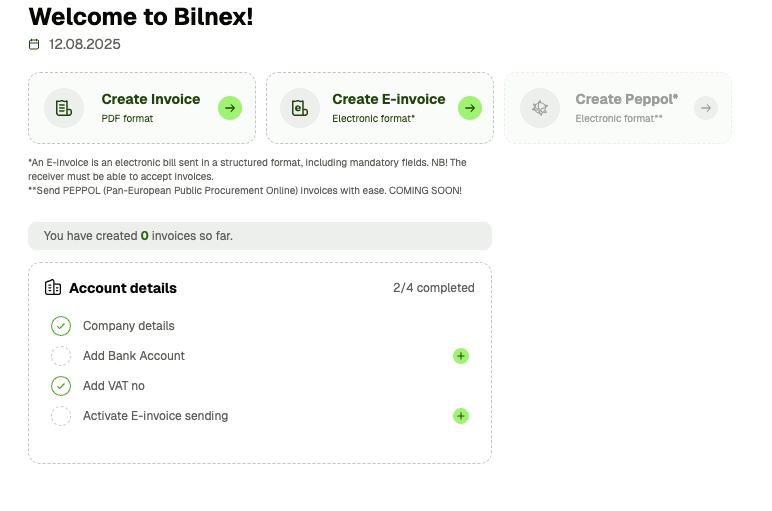
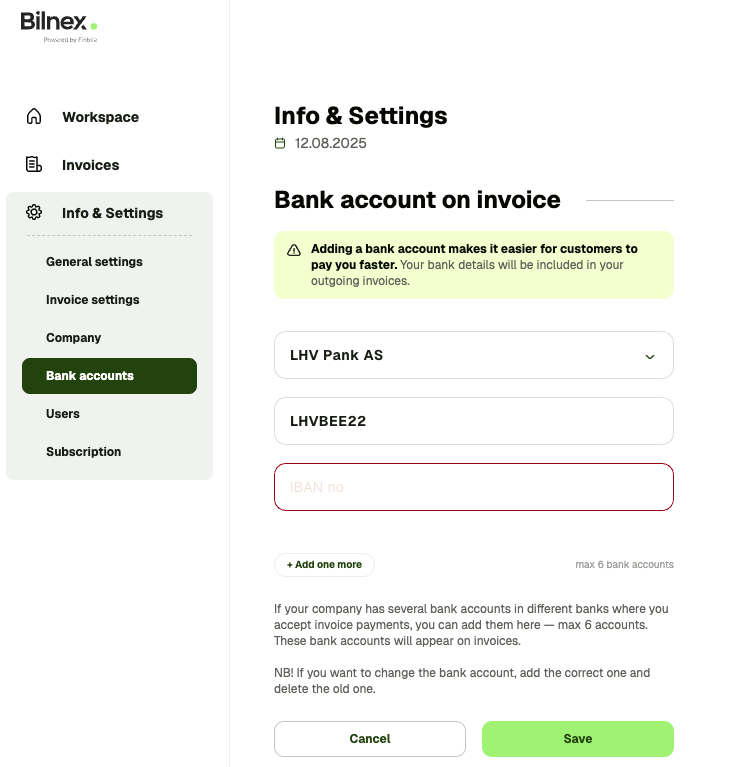
Although you can send the invoice to the customer before you have added the bank account details, we strongly recommend that you do this step as soon as possible. You can do the initial bank account settings from the Workspace or Info & Settings-> Bank Account below. Once your bank details are added, they will automatically appear on every invoice you submit. This way, the buyer will immediately know where to make the payment.
You can link up to 6 bank accounts to your company profile.
Before using e-invoices, they must be activated by a member of the management who is listed on the company's B-card in the business register. This can be done from the Workspace or when starting to create your first e-invoice.
Activation is done securely with Smart-ID, Mobile-ID or ID card.
If the account creator is not a board member, a special link can be sent to the board member to activate e-invoices, through which they can provide authentication.
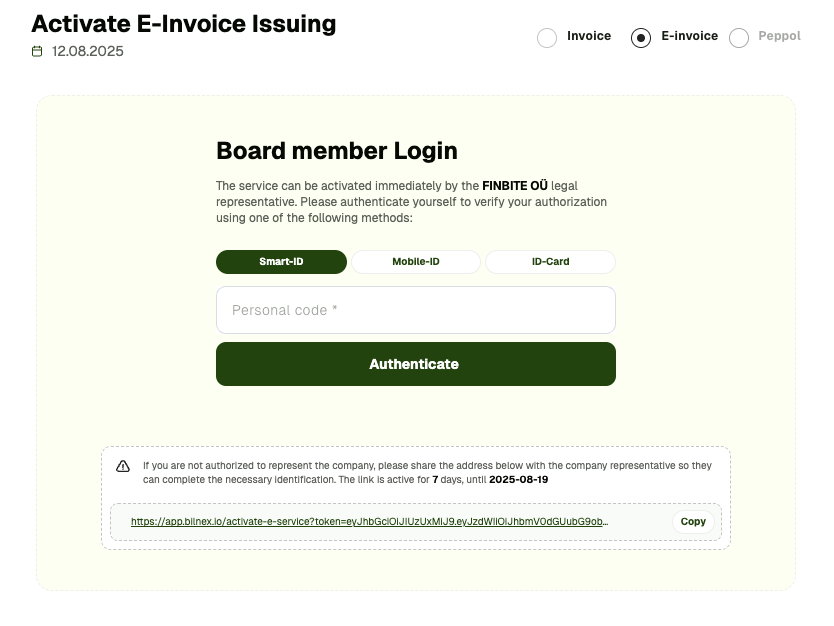
Sending e-invoices must be activated in advance by a board member to prevent invoice fraud. Bilnex automatically checks the activation confirmation against the company's B-card in the business register. This way, we can ensure that no one can start submitting fraudulent e-invoices under your company's name.
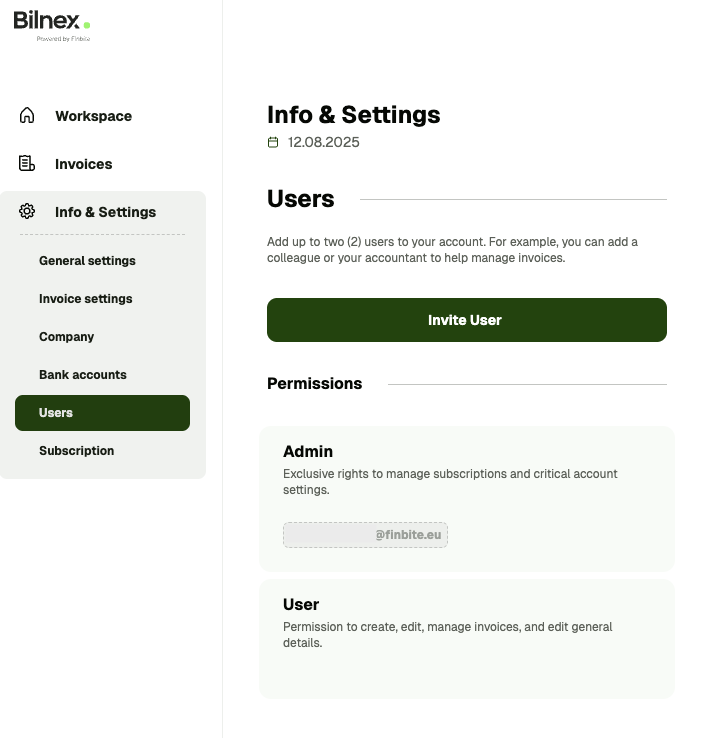
In addition to the Main User (Administrator), up to 2 more users can be added to one company.
Adding users works like this - Administrator selects from the menu Info & Settings → Users → Invite User, enters an email address and sends an invitation.
The new user will receive an invitation link via email and can join directly through it.
Deleting your Bilnex account has been made as easy as possible, and you don't need to notify us separately if you have access to the account.
Deleting an account:
- Log in and open "Info & Settings" → "Subscription" from the menu.
- Scroll to the bottom of the page and click the "Delete Business Account" button.
If you do not have access to your account, please write to us at support@bilnex.io. Include your company name, registry code, and request to delete your account in the email. We will process your request as soon as possible.
If you are unable to access your account or receive a message that your account has been closed, here are the steps to regain access to your account:
- Click the "Problem signing in" link in the login window.
- Enter your email address and a new user profile will be generated for you.
- Use your email and the new password you just created to log in.
If this fails, please contact us at support@bilnex.io and include the company name and registry code along with the error message.
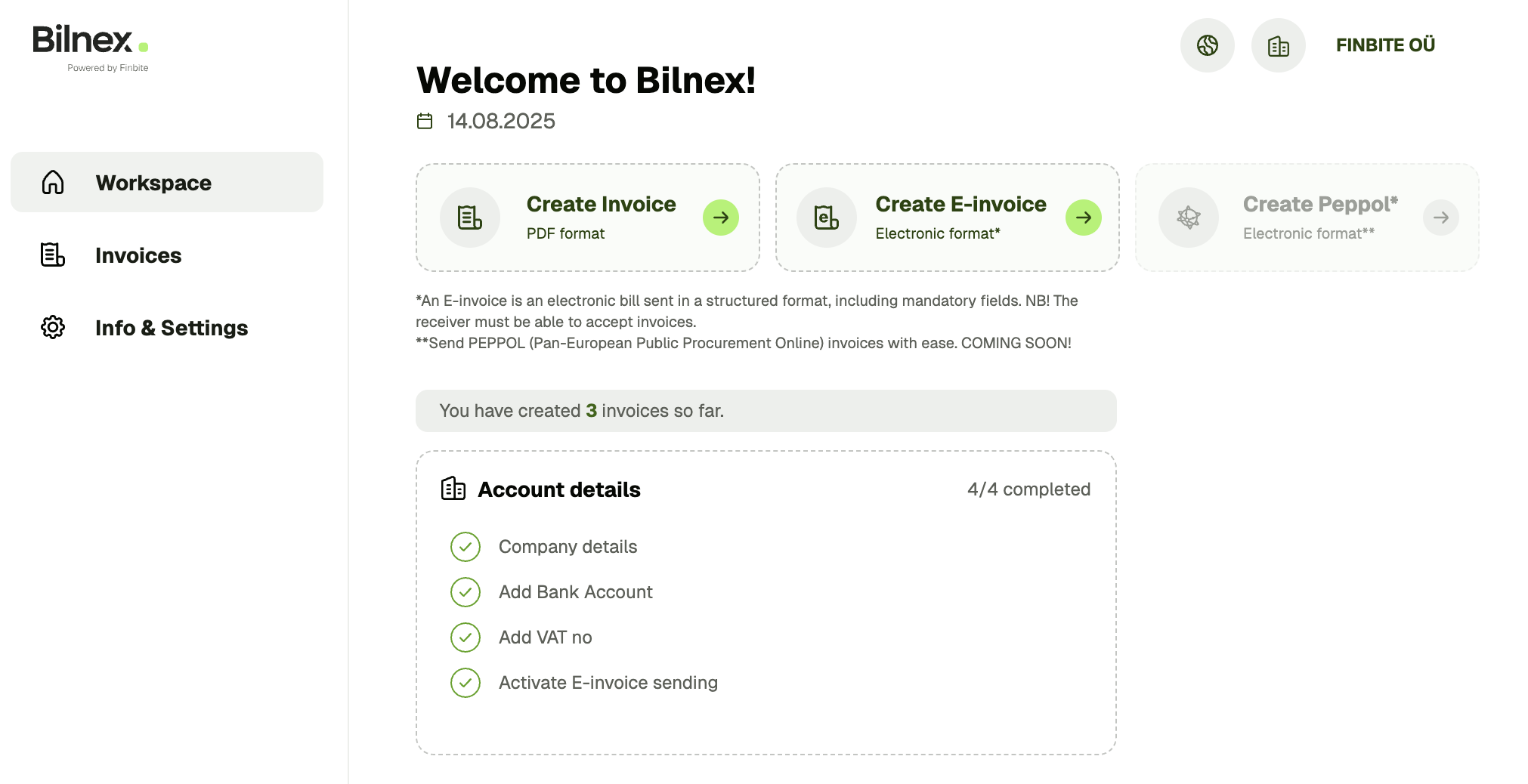
You can start creating an e-invoice. Workspace or Sales invoices from the menu.
Before you start, make sure that:
– company's bank account details have been entered
– sending e-invoices has been activated by a board member
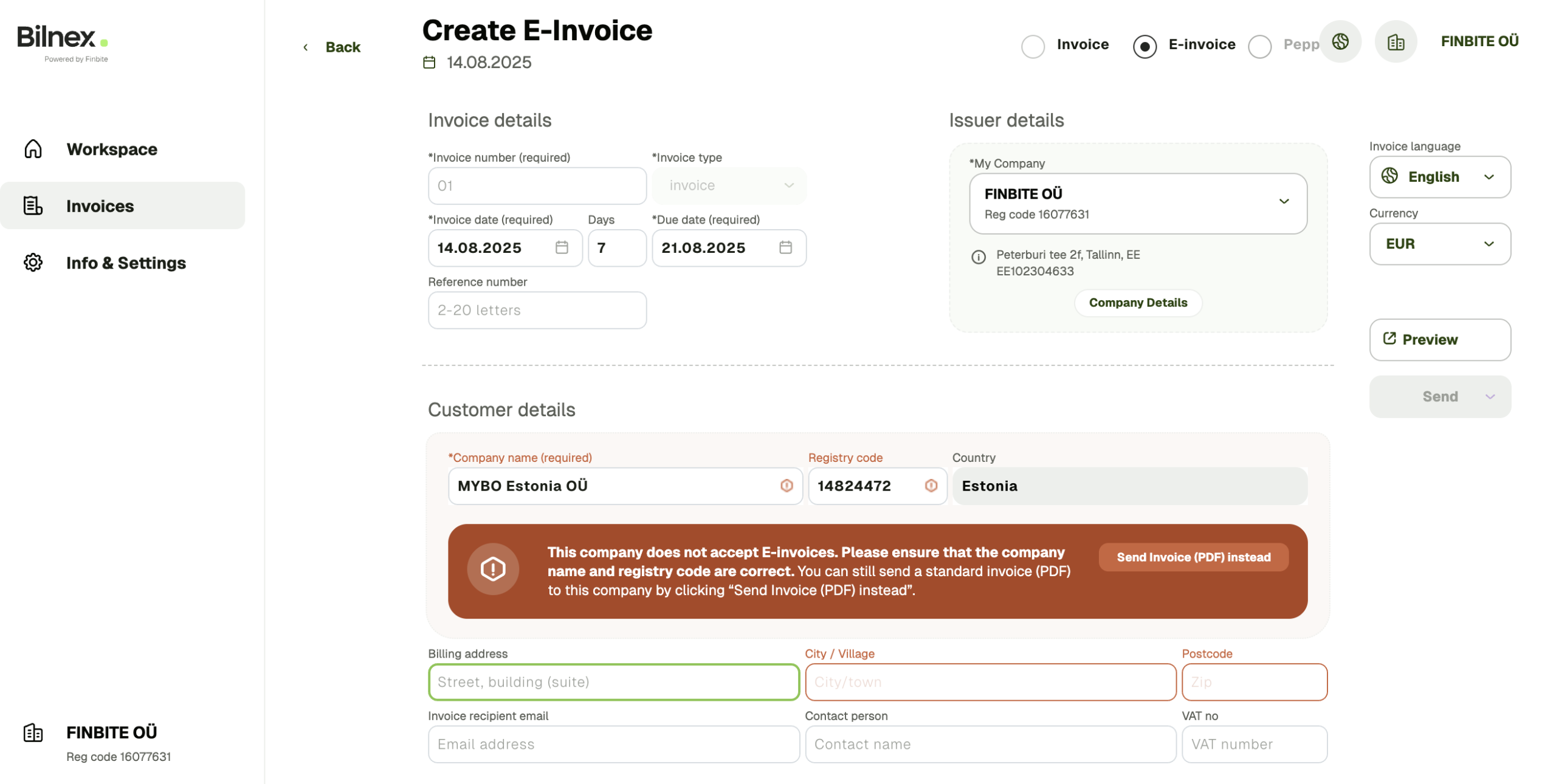
An e-invoice can only be created if the recipient of the invoice accepts e-invoices. When you enter the customer's name, Bilnex automatically checks the business register to see if the company accepts e-invoices. If not, you can convert the invoice to a PDF invoice with one click.
When the recipient receives e-invoices, the system automatically fills in the customer details.
Mandatory fields for e-invoice:
– Invoice number
– Date
– Payment term
– Service/product information
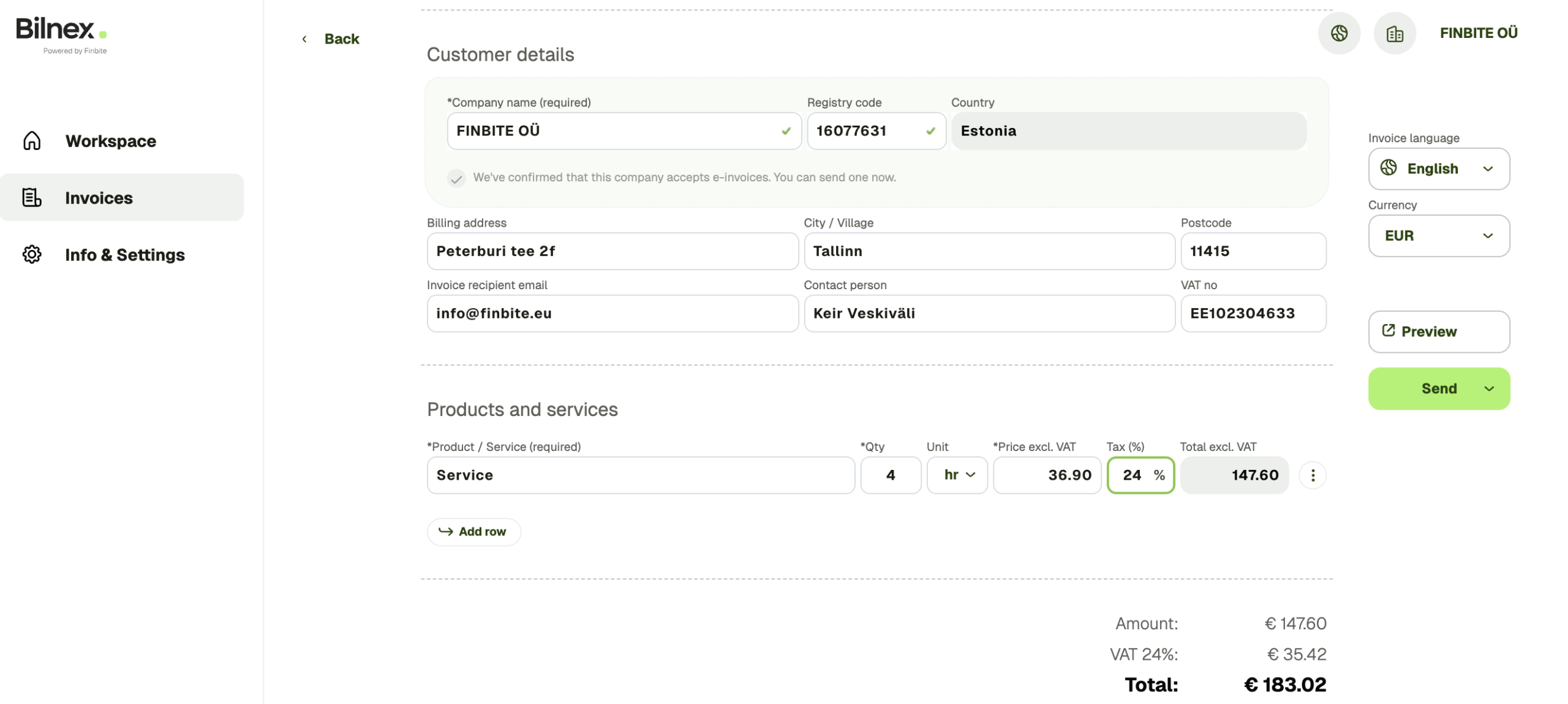
Add quantity, unit, price excluding VAT and VAT percentage to the service/product line – Bilnex will calculate all amounts itself: amount excluding VAT, VAT amount and total amount.
You can preview the e-invoice in the PDF view before sending it.
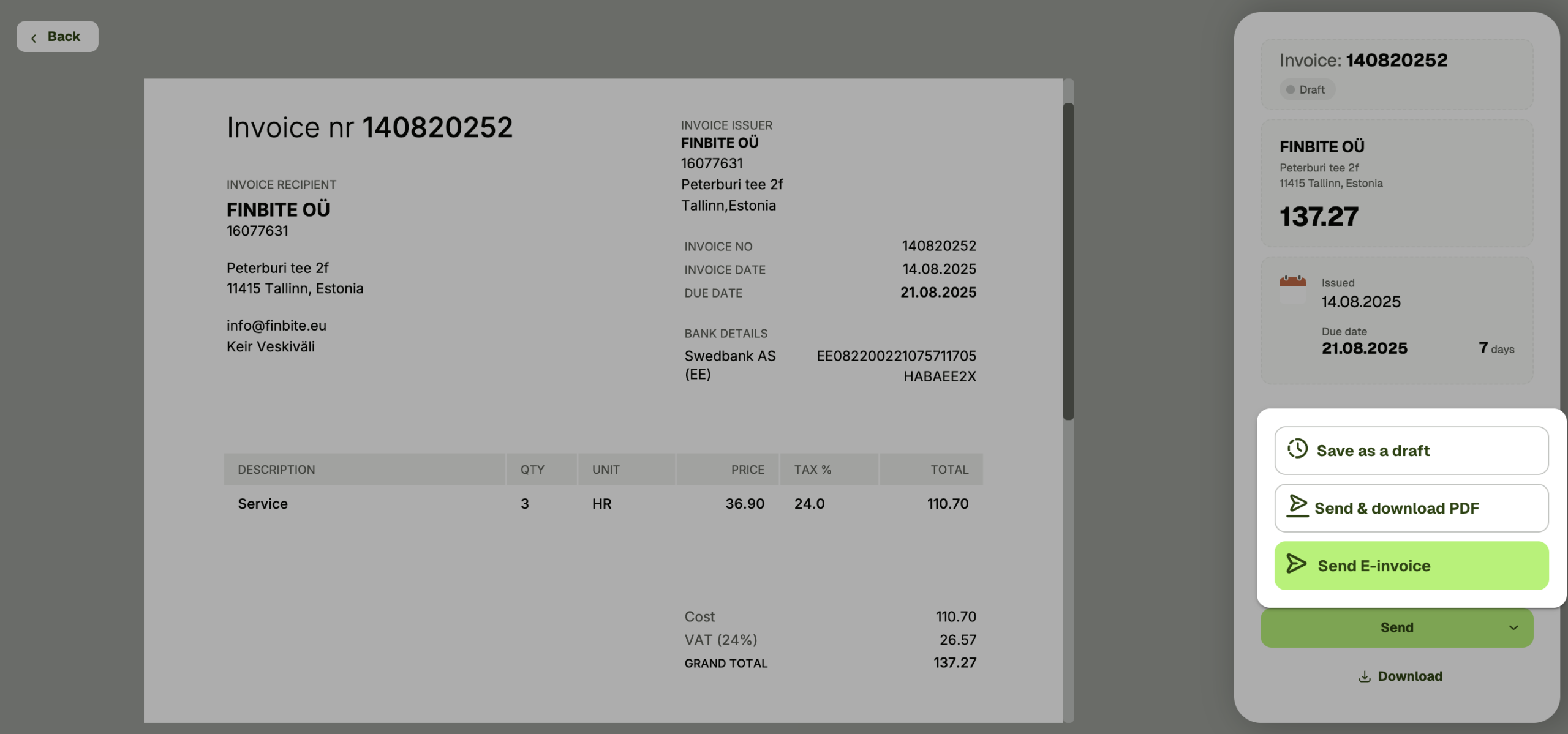
You have three options when sending an invoice:
– Save as draft (will not be sent)
– Send and download PDF image
– Send only as e-invoice (without downloading)
You can start creating a PDF invoice Workspace or Sales invoices from the menu by selecting Create new invoice.
Although entering bank account details is not mandatory, we recommend adding them before starting to create an invoice - this way, the invoice will always automatically indicate where the payment is expected.
PDF invoices can be created for all companies.
– If the company is entered in the Estonian Business Register, Bilnex will automatically fill in the customer's data partially or completely.
– If the customer is a foreign company, you can enter the data manually. In this case, we recommend changing the invoice language to English as well.
– When you create a recurring invoice, the Bilnex environment remembers the buyer's details and automatically fills in the information the next time.
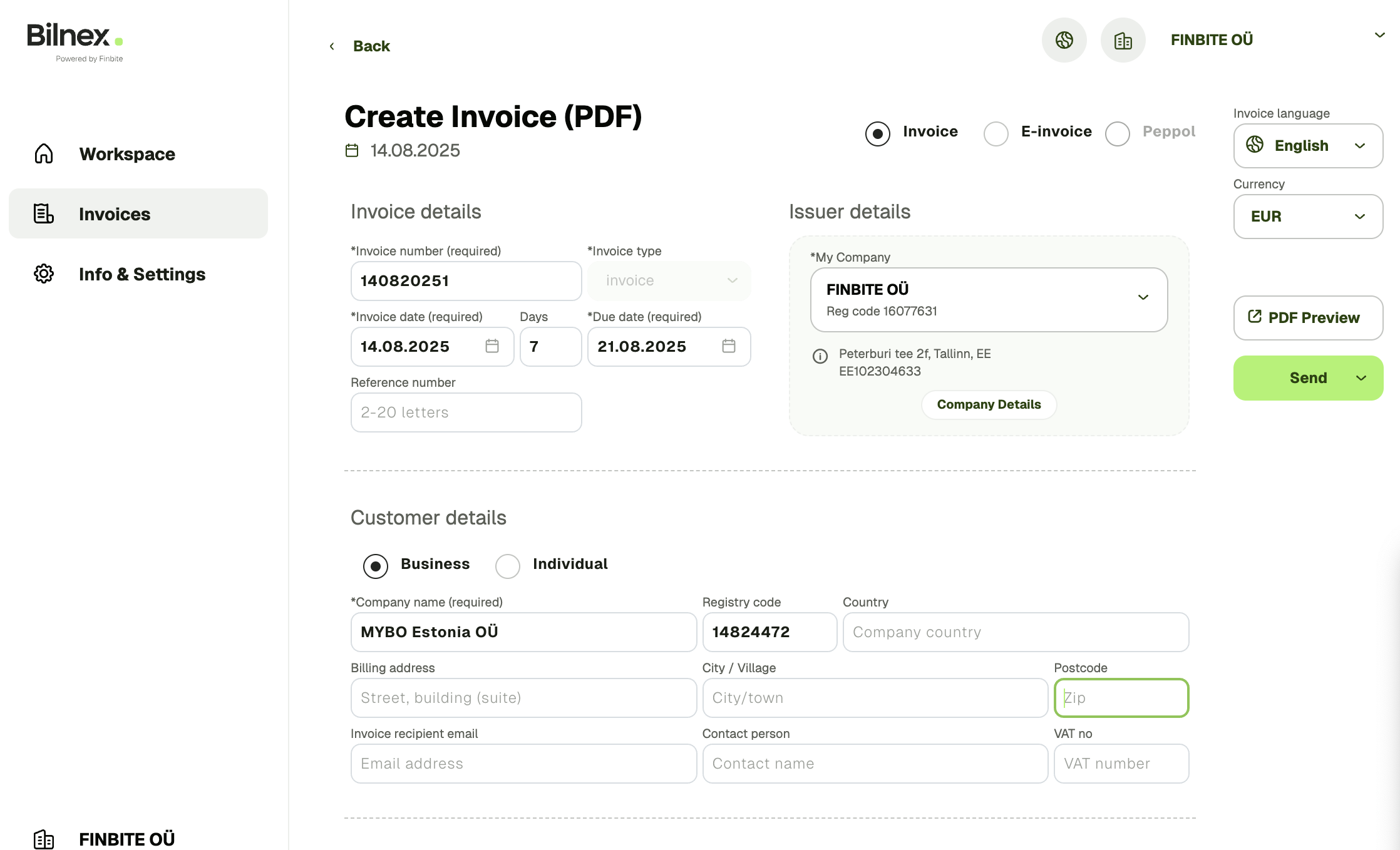
Required fields for the invoice:
– Invoice number
– Date
– Payment term
– Service/product information
Add quantity, unit, price excluding VAT and VAT percentage to the service/product line – Bilnex will calculate all amounts itself: amount excluding VAT, VAT amount and total amount.
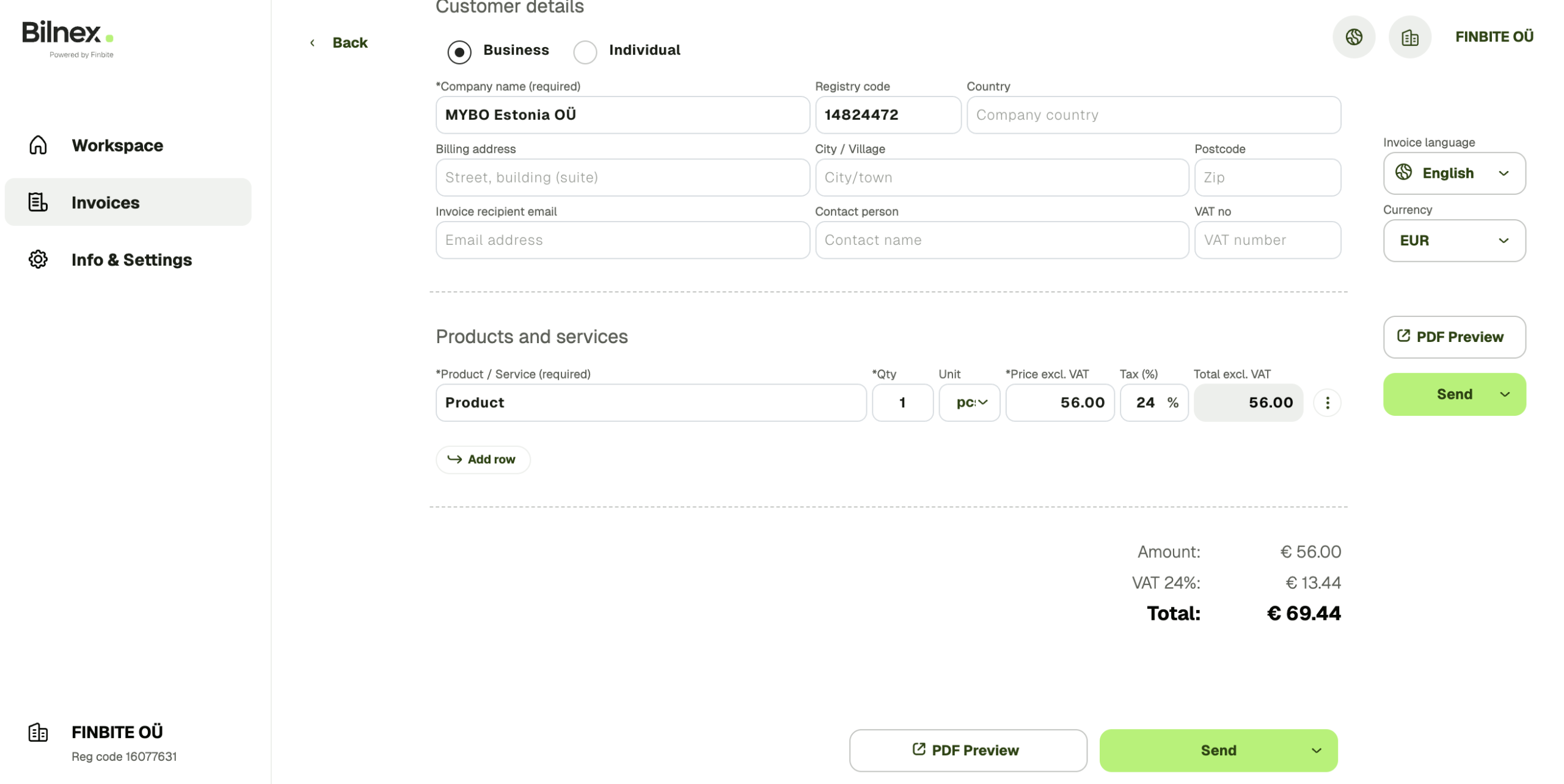
You can preview the invoice before sending it.
You have three options when sending an invoice:
– Save as draft (will not be sent)
– Save and download PDF view
– Send invoice by email
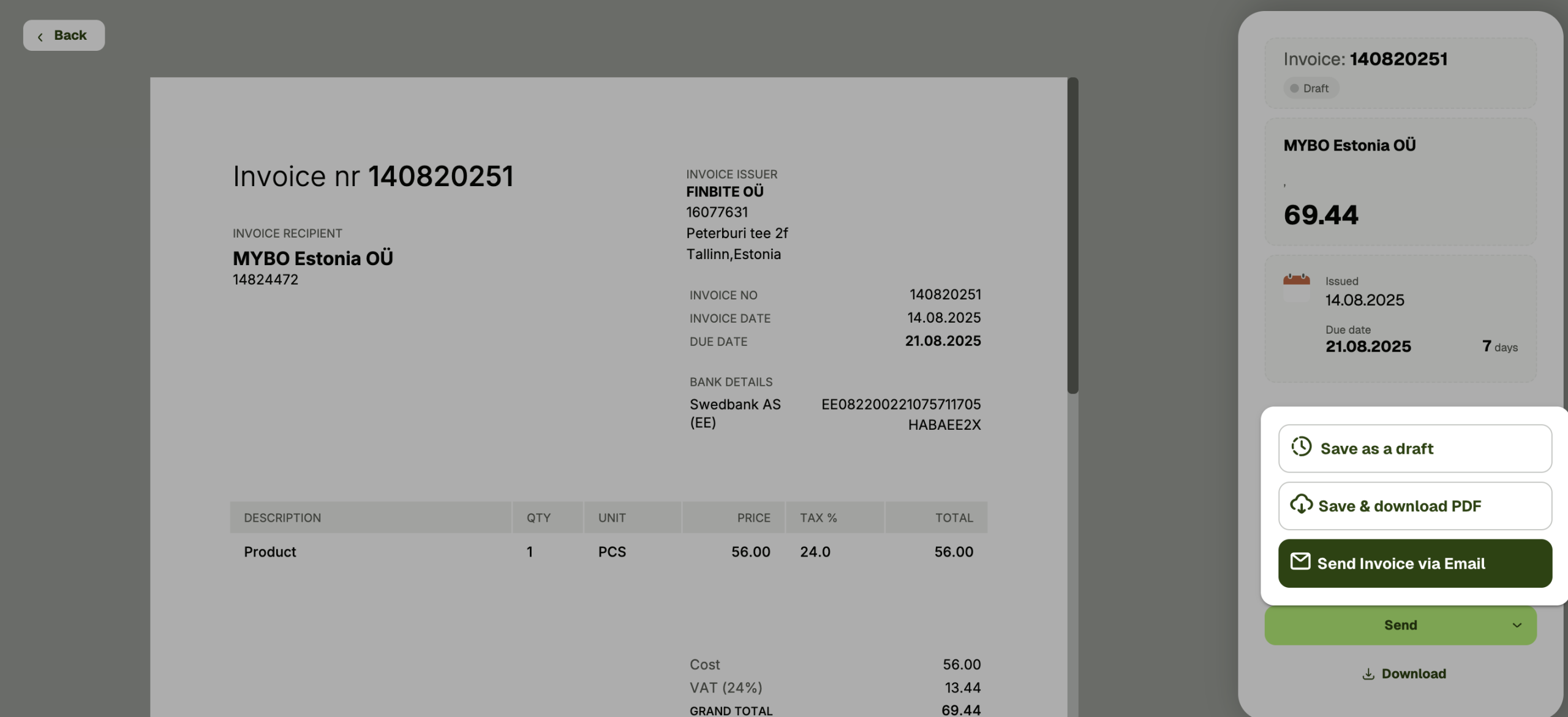
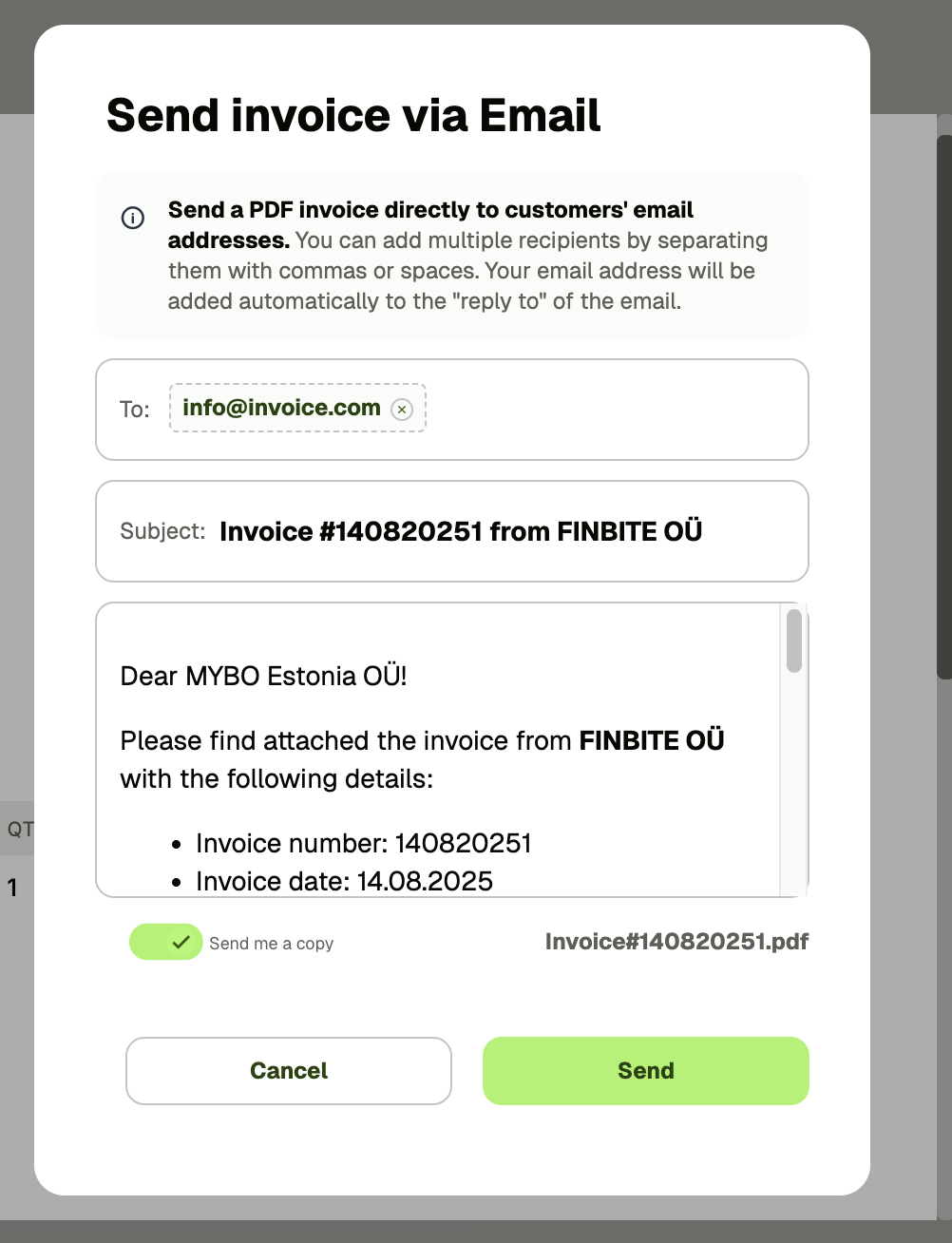
When sending by email, you will see an automatically generated letter, which you can edit if you wish. You can also choose whether you want a copy of the e-mail to be sent to your email address.
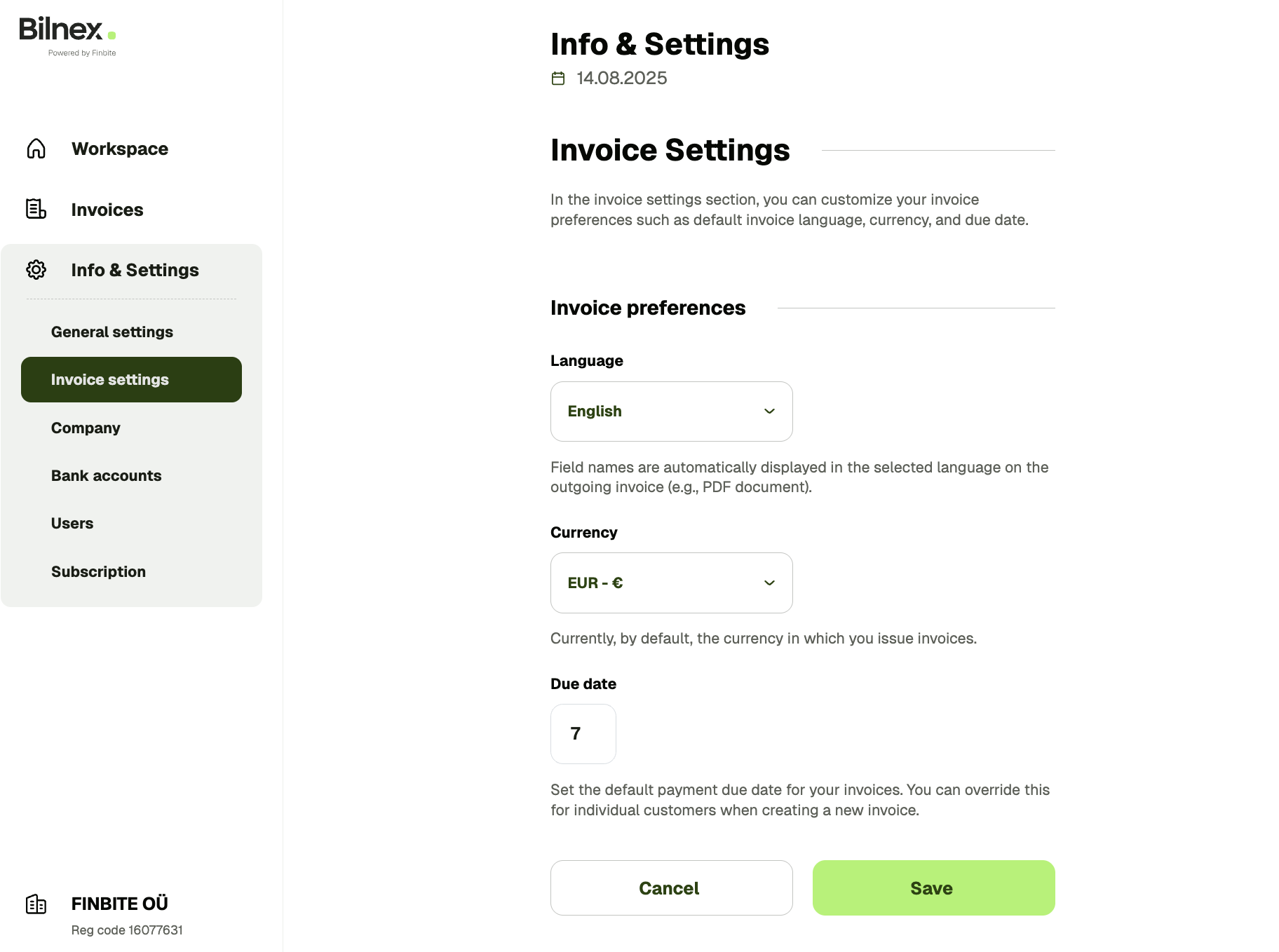
You can change the default invoice settings in the menu under Info & Settings → Invoice Settings.There you can choose which language, currency, and payment terms apply when creating new invoices.
If you wish, you can also change these settings for each invoice separately, in the invoice creation view.
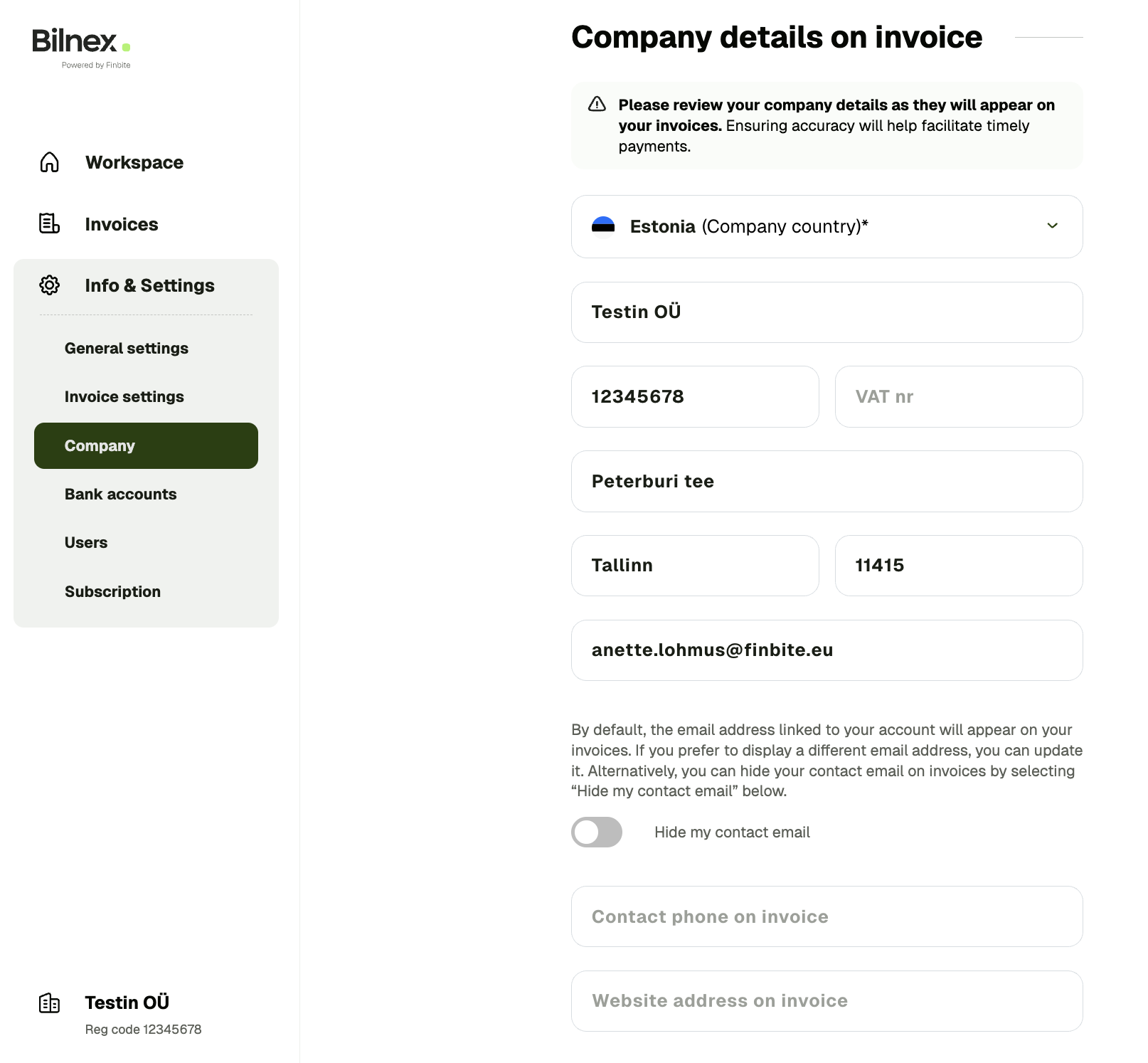
The seller's company details are automatically added to the invoice - you don't have to enter them manually each time.
You can edit contacts and other information in the menu under Info & Settings → Company. There you can add or change, for example:
– a generic billing email address that appears on invoices instead of the user's personal email
– contact phone number
– website address
If you notice that the wrong company was selected for the invoice, it's easy to fix:
- Delete the incorrect name: Click on the name field and manually delete the data there.
- Select new and correct: Start typing the correct name and select the correct company from the drop-down menu that opens.
This way, the system links the invoice to the correct recipient and saves the new data.
Once an invoice has already been sent, it cannot be changed afterwards. Send a new invoice - create and send a new sales invoice with correct data.
Not yet, but it is already in our development plan and will be added soon.
But how do you manage and save your invoices now?
- Download as PDF: After creating an invoice, you can download it as a PDF file to your computer or device at any time.
- Automatic history: All sent invoices are securely stored in the Bilnex system. You can always find them in the list of sent invoices.
This option is not currently available in Bilnex, but adding subtotals and summaries is in our development plan. We are constantly working on improving the features to make creating larger invoices even more convenient.
If you notice that VAT is not shown separately for each product line, this is completely correct.
Bilnex displays the VAT as a total at the end of the invoice. This complies with current accounting standards and e-invoicing requirements, where VAT accounting is summarized in the invoice summary.
It is not possible to send a reminder directly in e-invoice format, as the Estonian e-invoice standard (machine-readable XML file) does not support this feature. E-invoices are intended for transmitting the original invoice information, not for exchanging reminders.
How to inform the customer?
You can always send a payment reminder to your customer's email address along with a PDF invoice. This is a common way to send a reminder about a late payment or unpaid invoice, which will arrive directly in the recipient's inbox.
If your e-invoice operator is already Finbite, switching to Bilnex is particularly easy and no changes need to be made to the commercial register.
- Create a Bilnex account.
- Activate receiving e-invoices in the Bilnex environment.
The service is activated within seconds to minutes. Finbite will assign Bilnex as the internal operator and e-invoices will start moving to the Bilnex environment. In essence, the routing of e-invoice receipts from the Finbite environment to Bilnex will be overwritten.
If you want to continue to use some of the Finbite services, you do not need to terminate the Finbite contract and close the package. If you have already closed the package, but want to restore the movement of invoices between the Finbite and Merit environments, you can stop receiving e-invoices in the Bilnex environment at any time by making the appropriate settings. Do not remove the operator from the commercial register and new e-invoices will be received in the Finbite environment. If necessary, Bilnex reception can be reactivated at any time.
Bilnex users receive e-invoices through the operator Finbite. If the company does not have an e-invoice operator or uses another operator, the old connection must first be terminated and then a new one created.
- Create a Bilnex account.
- Activate receiving e-invoices.
- The system will automatically redirect you to the e-Business Register, where you must confirm Finbite as the operator.
The service is usually activated the next morning. Then, e-invoices will start to arrive at Bilnex.
Bilnex uses Finbite as a certified e-invoice operator to send and receive e-invoices. This means that Bilnex does not maintain a separate e-invoice network itself, and customers can use an already functioning and reliable infrastructure. For the user, everything happens in the Bilnex environment — Finbite works in the background to ensure that invoices move correctly and securely.
In Bilnex, purchase invoices have three main statuses that help you keep track of incoming invoices:
New: The invoice has just arrived at Bilnex and is awaiting review.
Confirmed: You have reviewed the invoice and accepted it.
Exported: The invoice has been successfully sent to your accounting system.
Since Bilnex is an invoice exchange environment, not a banking program, our system does not track whether the invoice has been paid at the bank or not. To pay, copy the payment details (account number, reference number, amount) from the invoice and make the payment at the bank.
Currently, Bilnex can accept and manage automatically received e-invoices. We do not yet have the option to manually upload invoices and add PDF files.
We are actively working on a new solution for digitizing PDF invoices (AI), which is planned to be added to Bilnex in the second half of this year. This means that in the future, the software will automatically read the data from the PDF invoice and you will not have to enter it manually.
For a Merit customer, setting up the Bilnex–Merit integration consists of three steps:
- Create an account on Bilnex.
- Activate receiving e-invoices in Bilnex.
- Connect with Bilnex Merit.
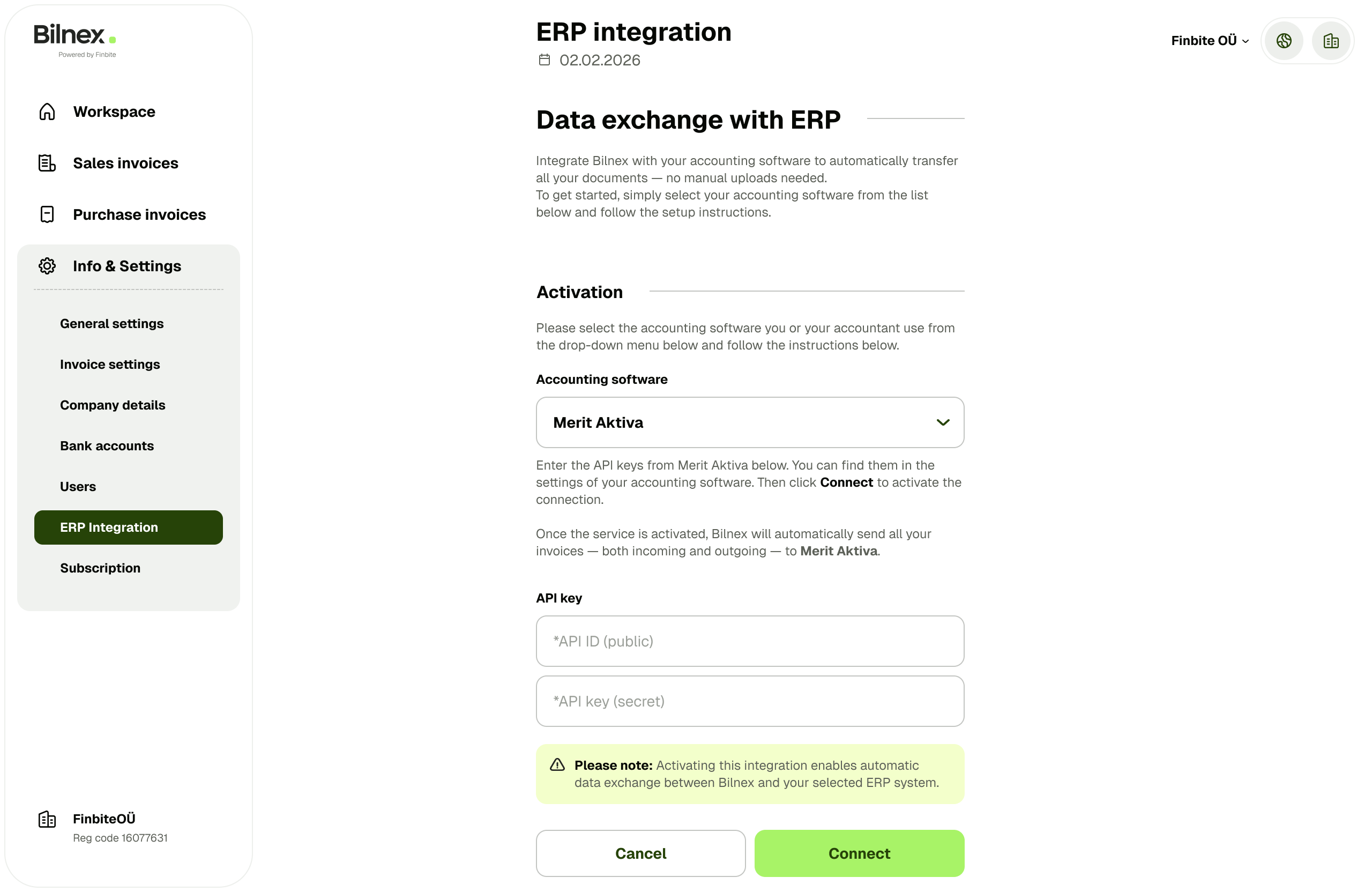
-open Info & Settings → ERP Connection
-select Merit as the connection
-enter the API ID and API key received from the Merit environment and save.
Attention! The API works with Merit Pro or Premium packages. Merit Standard packages do not support external connections.
Once the Merit connection is activated, you will see your sales invoices directly in your Merit account. You can send invoices from Bilnex and we will then automatically forward them to Merit.
You can also export purchase invoices received as e-invoices from Bilnex to Merit.
If the API connection gives an error message, check whether the API ID and key have been completely copied or generate a new key.
If the data is correct in both systems, but the problem persists, please write to us at support@bilnex.io.